
Keyboard
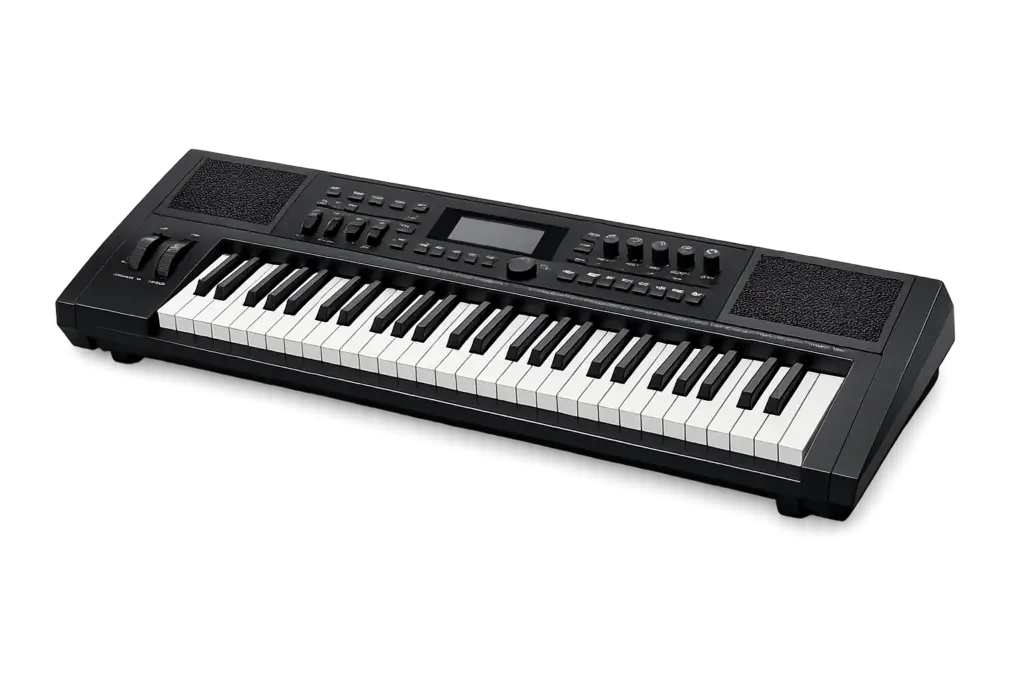
Electronic keyboards and digital pianos can connect directly to your computer or through an audio interface.
The best method depends on your keyboard.
Option 1: Connect Directly by USB
Some keyboards and digital pianos can send audio directly to your computer through USB.
Keyboard → USB → Computer
- Connect your keyboard to your computer using the appropriate USB cable.
- Install the manufacturer’s driver if your keyboard requires one.
- Turn on your keyboard before opening FarPlay.
- Open FarPlay and select your keyboard as the audio input device.
- Play the keyboard and make sure FarPlay is receiving sound.
- Adjust the keyboard’s output level as needed.
- Test both quiet and loud playing to make sure the sound is clear and does not clip or distort.
Important: USB Audio vs. MIDI
Not every keyboard sends audio through its USB connection.
Some keyboards send only MIDI, which tells the computer which notes you’re playing but does not send the actual sound of the keyboard.
If FarPlay does not receive your keyboard’s sound through USB, use an audio interface instead.
Option 2: Connect Through Audio Interface
This method works with most electronic keyboards and digital pianos that have audio outputs.
Keyboard → Audio Interface → Computer
What You’ll Need
- Audio interface
- 1/4-inch audio cable
- USB cable for your audio interface
- Headphones
How to Connect
- Find the Audio Out, Line Out, or L/Mono output on your keyboard.
- Connect the keyboard’s L/Mono output to an input on your audio interface using a 1/4-inch cable.
- Connect the audio interface to your computer by USB.
- Turn on the keyboard.
- Open FarPlay and select your audio interface as the input and output device.
- Play your keyboard and adjust the input gain on the audio interface.
- Play some of your loudest notes and chords to make sure the signal does not clip or distort.
- Plug your headphones into the audio interface.
Mono or Stereo?
A mono connection is perfectly fine for rehearsals and is the simplest setup.
Use the keyboard’s L/Mono output when connecting with one cable.
If you already have an audio interface with two available inputs and want stereo sound, you can connect:
Keyboard L → Interface Input 1
Keyboard R → Interface Input 2
Stereo is optional and not required for All Ages All Stages Band rehearsals.
Adding Your Voice
If your keyboard is connected to an audio interface and you also want to use a separate microphone for speaking, a two-input interface makes this easy.
Input 1 → Keyboard
Input 2 → Microphone
This allows your keyboard and voice to be heard during rehearsal and gives you independent control over their levels.
If you’re using a headset microphone instead, it may also be possible to use that for your voice depending on your computer and audio setup.
Use Headphones
Headphones are required during online rehearsals.
If you’re using an audio interface, plugging your headphones directly into the interface is usually the simplest setup.
This lets you hear the other musicians and backing tracks without that sound being picked up and sent back into the rehearsal.
Before Your Rehearsal
Test your setup before joining:
- Play both soft and loud notes and chords.
- Make sure FarPlay is receiving your keyboard.
- Make sure loud playing isn’t clipping or distorting.
- Check that you can hear through your headphones.
- Check that your speaking voice can be heard if you’re using a microphone.
Need Help?
Keyboards and digital pianos vary considerably. If you’re unsure how to connect yours, contact us with the brand and model number of your keyboard, and we’ll help you determine the simplest way to connect it.
One thing I’d avoid adding is instructions for using GarageBand, virtual instruments, MIDI routing, etc. That’s absolutely possible, but it introduces software and additional latency that your average participant doesn’t need. Keep this page focused on getting the keyboard’s actual audio into FarPlay.